

Apps reference
Per-app settings, environment variables, data access, backend versions, and limits for Keboola apps.
Technical reference for building and running Keboola apps — the settings, variables, and runtime behavior you’ll reach for while developing.
On this page: Environment variables · Data access · Backend versions · App actions · Sleep and resume · Limits
Per-app settings
Section titled “Per-app settings”Each app has its own configuration.
| Setting | What it does |
|---|---|
| Authentication | Who can open the app — None, Basic, OIDC, GitHub, GitLab, or JumpCloud. See Authentication. |
| Code Source | Where the app’s code comes from — inline Code or a Git Repository. |
| Backend version | The runtime image (Python version and, for Streamlit, the Streamlit version). See Backend versions. |
| Backend size | The compute allocated to the app (for example XSmall, Small); chosen on deploy. The hourly rate in time credits depends on the size and the framework. See Apps pricing and the backend sizes. |
| Auto-sleep | The inactivity timeout before the app suspends. See Sleep and resume. |
| URL | The address where the app is served. |
| Versioning | Draft vs production versions of the app, on the Versions tab. |
Environment variables
Section titled “Environment variables”Sensitive values — API keys, tokens, passwords — should be stored as secrets in the app configuration, never written into your code. The platform also injects several variables automatically: BRANCH_ID (always set), KBC_TOKEN and DATA_LOADER_API_URL (with Data Loader), and WORKSPACE_ID / QUERY_SERVICE_URL / KBC_WORKSPACE_MANIFEST_PATH (with Storage Access). See the runtime README for the full list.
| Variable | Notes |
|---|---|
KBC_TOKEN | Storage token, injected automatically. Reserved — do not set it yourself, and keep it server-side. |
KBC_URL | Storage API URL for the current stack, injected automatically. Pair it with KBC_TOKEN when creating the Storage client. |
DATA_LOADER_API_URL | Address of the Data Loader API, injected automatically together with KBC_TOKEN when the app uses the Data Loader. Used by the runtime; you rarely need it directly. |
KBC_WORKSPACE_MANIFEST_PATH | Path to the workspace manifest JSON file (contains workspaceId). Recommended source for the workspace ID. Set with Storage Access. |
WORKSPACE_ID | ID of the provisioned workspace. Also in the manifest — prefer the manifest in new code. Set with Storage Access. |
BRANCH_ID | Storage API branch ID of the project. |
QUERY_SERVICE_URL | URL of the Query Service API (stack-specific). Set with Storage Access. |
Secrets
Section titled “Secrets”Add secrets as key-value pairs in the app configuration. The # prefix marks a value as a secret (encrypted at rest). Keboola makes secrets available as environment variables when your app starts: the # prefix is stripped and the variable name is uppercased. For example, #my-custom-var becomes MY_CUSTOM_VAR — the # is removed, dashes become underscores, and the name is uppercased. The value itself is passed through unchanged.
Backend versions
Section titled “Backend versions”When deploying an app, you select a backend version — the runtime image — in the deploy wizard. For Python/JS apps it looks like this:
1.6.1 - Python 3.11 + JavaScript (Node 20, Bun 1.3)- Backend version (
1.6.1): the release of the base image that runs your app. - Python / Node / Bun versions: the interpreters available to your code.
Python/JS apps bring their own dependencies from the repository — requirements.txt for Python, package.json for Node — installed on deploy. There is no pre-installed package list to depend on.
Building a Streamlit app? Its backend versions, supported Python variants, and the pre-installed package list live in the Streamlit section.
Data access
Section titled “Data access”Apps read and write Keboola data three ways: a one-time load via Input Mapping, on-demand reads via the Storage API, and real-time SQL via Storage Access.
Input Mapping
Section titled “Input Mapping”If you configure Input Mapping, Keboola loads selected tables into the container before your app starts. Read them as CSV files:
import pandas as pd
# File path pattern: /data/in/tables/<table-name>.csvdf = pd.read_csv("/data/in/tables/my_table.csv")
Input Mapping data is loaded once at startup. To get fresh data, redeploy the app or use the Storage API at runtime.
Storage API at runtime
Section titled “Storage API at runtime”To fetch up-to-date data without redeploying, use the Keboola Storage API. Exporting a table is an asynchronous job, so use the official client rather than calling the endpoint by hand — it handles the export job, download, and paging for you:
import osimport pandas as pdfrom kbcstorage.client import Client
client = Client(os.environ["KBC_URL"], os.environ["KBC_TOKEN"])  # KBC_TOKEN is injected automatically
client.tables.export_to_file(table_id="in.c-main.my_table", path_name=".")df = pd.read_csv("my_table")
For the full API, see the Keboola Storage Python Client documentation.
Storage Access
Section titled “Storage Access”Storage Access lets your app read from and write back to Keboola Storage tables in real time, over SQL through the Query Service.
Enable it: in Project Settings > Features, activate Storage Access. Then, in the app’s Advanced Settings > Storage Access, click + Add Writable Table and select the buckets/tables the app may read and write (SELECT, INSERT, UPDATE, DELETE, TRUNCATE). All selected tables must exist before you deploy. Managing configs via the Storage API? The same selection is expressed under storage.output.tables with "unload_strategy": "direct-grant" per table.
Read data with the keboola-query-service client (also on npm as @keboola/query-service):
import jsonimport osfrom keboola_query_service import Client
branch_id = os.environ["BRANCH_ID"]query_service_url = os.environ["QUERY_SERVICE_URL"]with open(os.environ["KBC_WORKSPACE_MANIFEST_PATH"]) as f:    workspace_id = json.load(f)["workspaceId"]
client = Client(base_url=query_service_url, token=os.environ["KBC_TOKEN"])
results = client.execute_query(    branch_id=branch_id,    workspace_id=workspace_id,    statements=['SELECT * FROM "in.c-main"."customers" LIMIT 1000'],)
Write data with standard SQL (INSERT / UPDATE / DELETE / TRUNCATE) via execute_query. The Query Service refreshes table metadata automatically after writes.
How it works: enabling Storage Access provisions an ephemeral workspace (a database user with the granted permissions). A fresh workspace is created each time the app starts, wakes from sleep, or is redeployed, and is deleted when the app is deleted — so permission changes take effect on the next start.
BigQuery backend
Section titled “BigQuery backend”Setup, workspace lifecycle, environment variables, and the Query Service client are identical on BigQuery — only the SQL dialect differs. The Query Service passes SQL through to the backend unchanged (it does not translate dialects), so apply two rules to every query:
- Quote identifiers with backticks, as
dataset.table(two parts). Do not prepend the Keboola stage (in/out) as a third segment — BigQuery resolves a three-part name asproject.dataset.tableand fails with an error likeThe project <stage> has not enabled BigQuery. - Use the mangled dataset name. BigQuery dataset names cannot contain
.or-, so every.and-in the bucket ID becomes_(in.c-main→in_c_main). Only the bucket (dataset) name is mangled — the table name keeps its original form.
-- ✅ Correct — dataset.table (two parts); either quoting style worksSELECT * FROM `in_c_main`.`customers` LIMIT 1000SELECT * FROM `in_c_main.customers`  LIMIT 1000
-- ❌ Wrong — the Keboola stage `in` becomes a third (project) segmentSELECT * FROM `in`.`c-main`.`customers` LIMIT 1000Input Mapping vs Storage Access:
| Aspect | Input Mapping | Direct Storage Access |
|---|---|---|
| Data freshness | Snapshot at deploy time | Real-time, always current |
| Data loading | CSV files at /data/in/tables/ | Query on demand via API |
| Write capability | None (read-only) | INSERT, UPDATE, DELETE, TRUNCATE |
| Dataset size | Limited by container memory | Virtually unlimited (pagination) |
| Configuration | Select tables in UI | Select tables + enable toggle |
| Use case | Static dashboards, reports | Interactive apps, data entry |
Terminal log
Section titled “Terminal log”The Terminal Logs tab provides an almost real-time view of the application’s terminal logs (with a slight delay of a few seconds), for monitoring and troubleshooting.
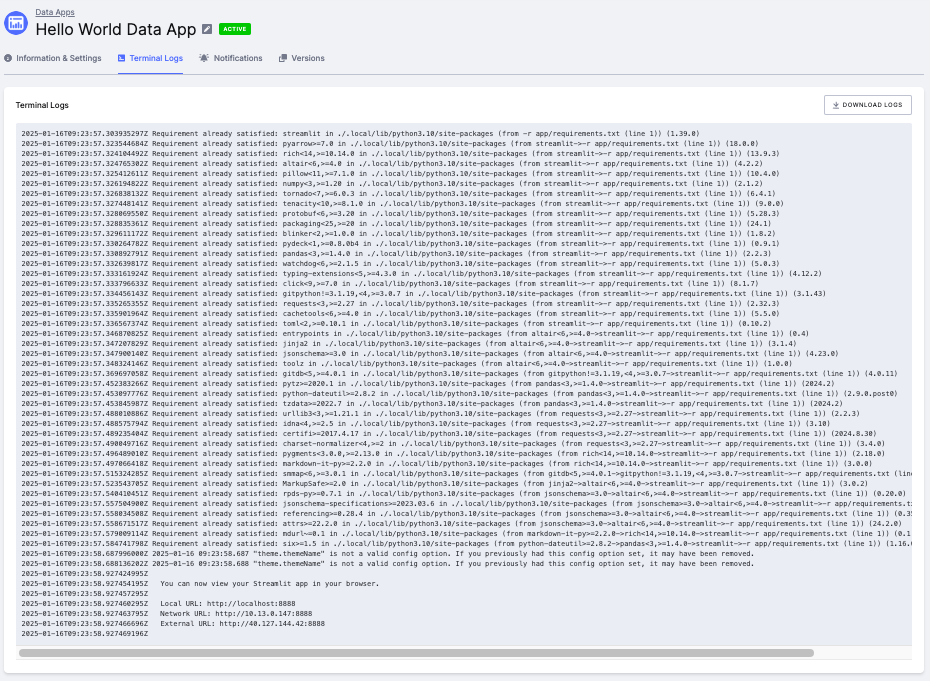
- Near real-time log displayterminal output as it is generated, with a short delay.
- Full log downloaddownload the complete log from the app’s start with Download logs.
- Log availabilitylogs are accessible only while the app is running, and are deleted when it stops or pauses.
App actions
Section titled “App actions”Manage an app from the header and the ⋮ (More actions) menu on its page.
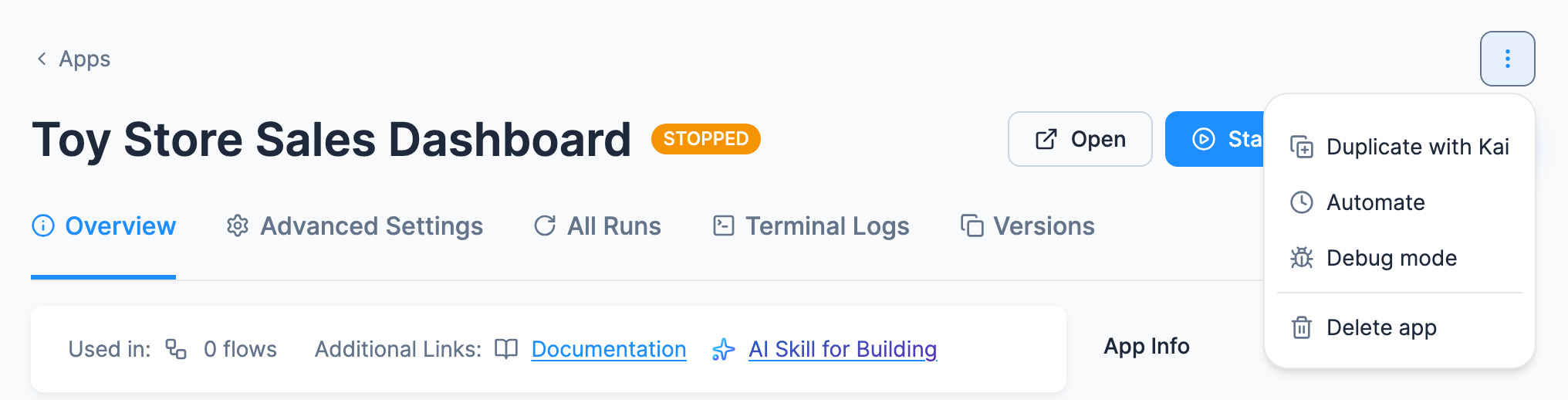
- Deploystarts an app that has never run. Once the deployment job finishes, open the app with Open.
- Openon any app that has been deployed, opens the Open app dialog, whatever the app’s authentication. The dialog shows the app’s address with a copy button, then the hidden password with its own copy button. An app without a password gets a line saying why instead. The dialog’s Open app button opens the app in a new tab.
- Redeployapply changes made in the app configuration (they take effect only after a redeploy).
- Startstarts a stopped or sleeping app with its current configuration.
- Edit with Kaiopens the Builder, where Kai changes the app in a draft. Shown on Python/JS apps with a Keboola-managed repository, to users who can edit the app, when Kai can build apps in the project.
- Migrate to Python/JS with Kaion Streamlit apps, asks Kai to migrate the app to Python/JS. Shown to users who can edit the app, when Kai can build apps in the project and the stack offers Python/JS apps. Migrate to Python/JS walks through it.
- Pause appputs a running app to sleep right away, before its inactivity timeout runs out. The configuration is kept, and the next visit or Start wakes the app. While the app is still starting, the item is Cancel start instead, which stops the start and keeps the deployed configuration.
- Duplicate with Kaion apps with a Keboola-managed repository, opens a new Kai chat and asks Kai to copy the app. The request tells Kai to say what carries over and to wait for your confirmation.
- Duplicateon all other apps, copies the app’s code (or its repository and branch) and settings into a new app, which starts undeployed and gets its own address when you deploy it.
- Automatecreates a flow that starts the app on a schedule you pick.
- Debug modeopens the app’s configuration and its state as raw JSON in a full-screen editor, on the Update Configuration and Update State tabs. It doesn’t run the app. A configuration saved there is a change like any other, and the app picks it up at the next Redeploy or Start. Saving the state doesn’t create a configuration version.
- Delete appstops the deployment and deletes its configuration.
Which of these the header and the ⋮ menu offer depends on the app’s state and where its code lives, on your role in the project, and on whether Kai can build apps there. Operate and update an app walks through them in the order you meet them.
Sleep and resume
Section titled “Sleep and resume”The Suspend/Resume feature saves resources by putting your app to sleep after a period of inactivity.
- Activity monitoringthe app watches for HTTP requests and active WebSocket connections. If none occur for the configured period, it suspends. An inactive browser tab can still cause background activity; Chrome’s Memory Saver can help prevent this.
- Automatic resumptionthe next request wakes the app, except after a failed start (see below). The first request after waking may take slightly longer.
- Cost efficiencyyou’re billed only for the time the app was active or waiting to suspend.
If you open the URL of a sleeping app, it triggers wakeup and shows a waking up page.
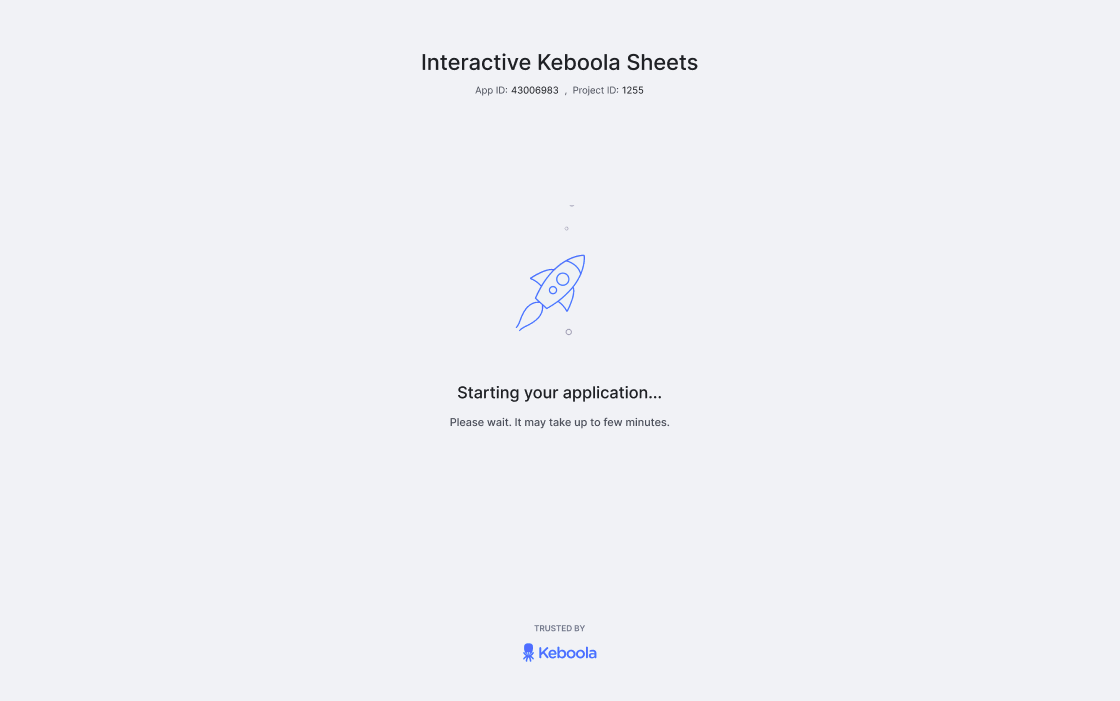
If something goes wrong, a wakeup error page appears; click Show More for details.
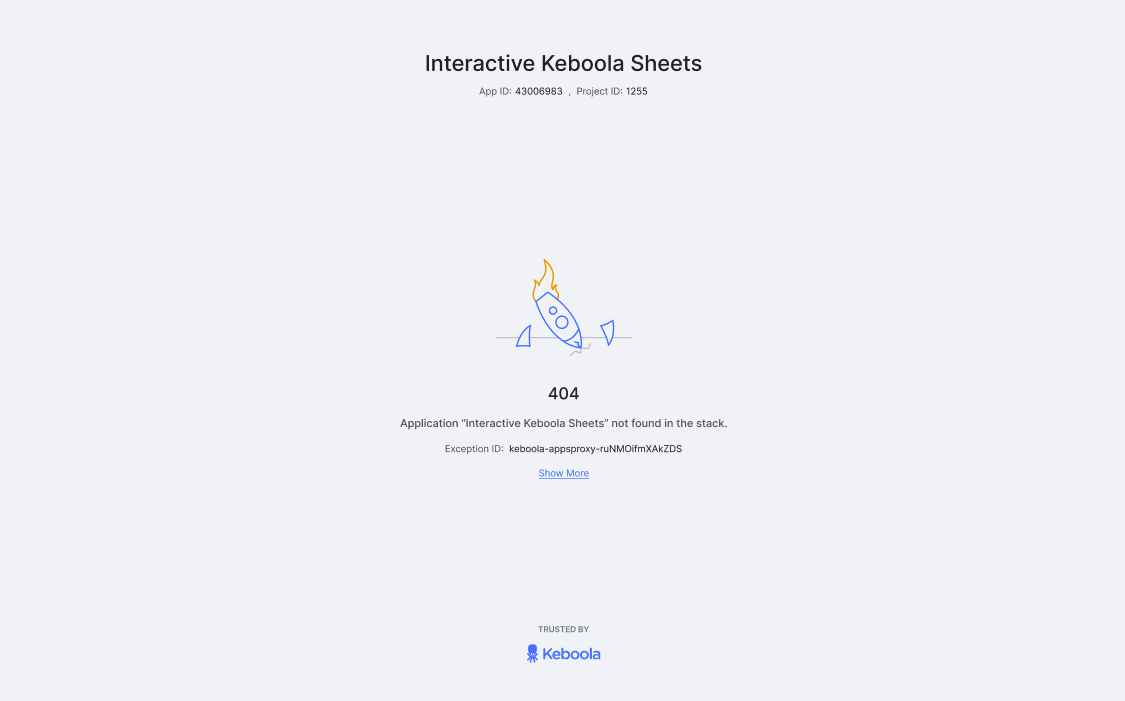
If a deploy or start of a stopped or sleeping app fails, Keboola stops trying, and visits no longer wake the app. Its URL shows a page headed This app is not running instead, which tells visitors to contact the app’s maintainer. The app’s page in Keboola warns that it “was disabled because it failed to start automatically multiple times”, though one failed start is enough. It stays off until someone fixes the cause and starts it by hand with Start, which turns waking on visits back on (kbagent data-app deploy starts it from a terminal); Troubleshooting explains how to find the cause. A failed Redeploy of a running app doesn’t disable it: the previous version keeps running.
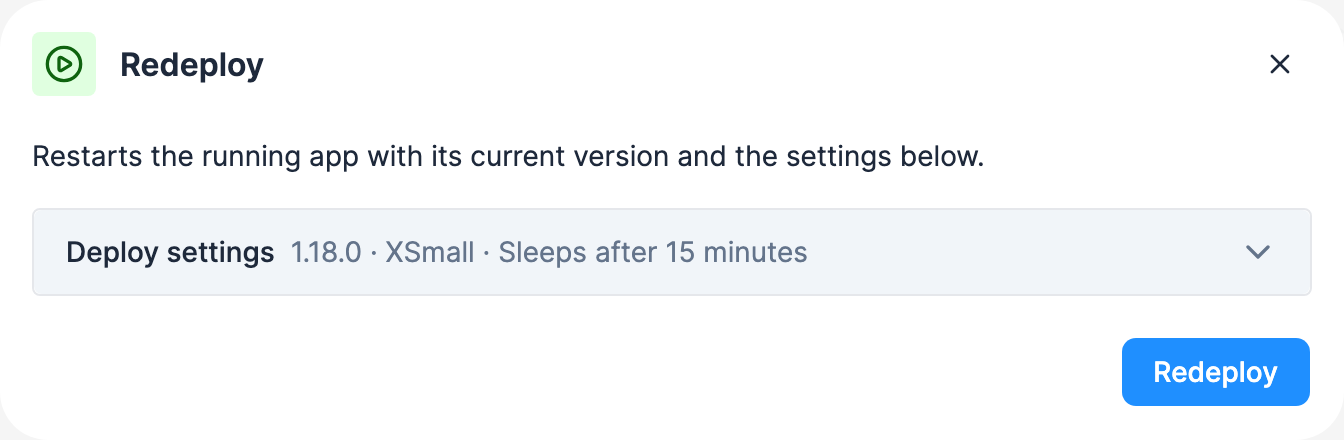
When you Deploy, a wizard prompts for the backend version, the backend size and the auto-sleep timeout (five minutes to 30 days; default 15 minutes). Redeploy opens the same wizard with the app’s current values in a collapsed Deploy settings section; expand it to change them. Start starts a stopped or sleeping app right away with those saved values and opens the wizard only when Kai has undeployed drafts of the app. Pay-as-you-go projects have no backend size field.
Debugging app deployment
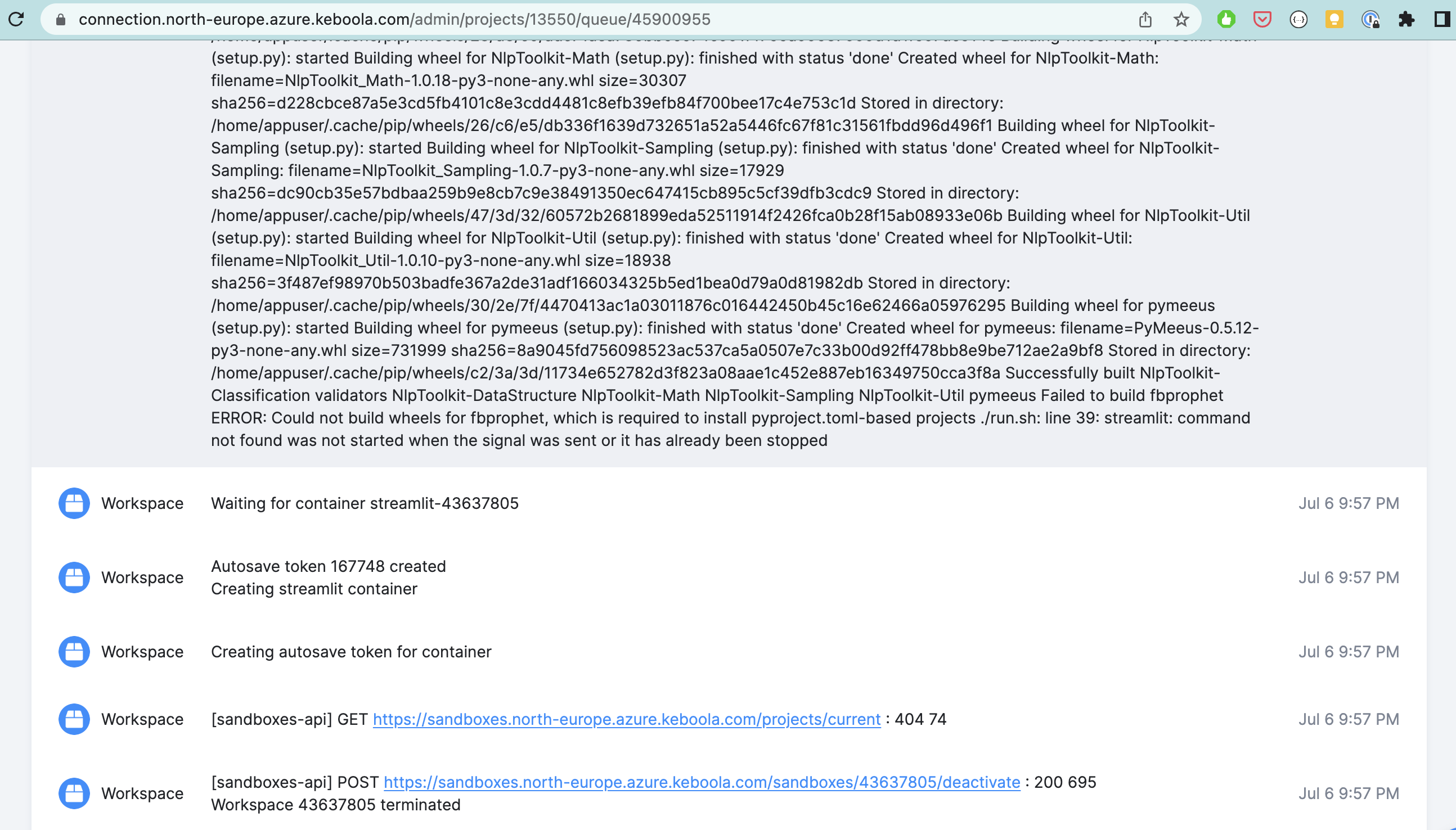
Section titled “Debugging app deployment”If the app deployment job fails, you can see the logs from its container in the event log of the deployment job. For example, there may be a conflict with the specified packages:
Limits
Section titled “Limits”Storage Access has the following limitations:
- Column-level permissions not supported — granting access to a table grants read/write on all its columns.
- Permission changes require app restart — adding or removing tables takes effect on the next app start (deploy, redeploy, or wake from sleep).
Next: Streamlit apps →